Data Backup
Resources
Download my résumé
as a Word compressed zip file and Adobe
Acrobat. Need computer help? Book now
to resolve most computer issues. Tech
support jobs.
If you need technical support for issues after
reading this FAQ, please visit my Tech Support page,
where I offer fee based support.
This FAQ is divided into several sections.
Short and easy
description of backing up
For those who don't need to know why, and just
want to get down to business, I've written a
shorthand of what's below. And many of your
questions are answered below. The most important
thing to keep in mind is keep at least two copies
of all your data someplace at all times.
If you want to know how to do it the easiest way
to recover from, get two external Firewire hard
drives* at least the same size as the one you are
using on the internal, and Shirt-Pocket's
Superduper. Be sure to only leave the backup
drive connected and no other Firewire devices at
the time of the backing up.
If you don't mind writing down registration codes
for all the applications, and risking a few CDs
may not be working in a couple years time, just
backup your Home folder (your Users -> yourname
folder), using Shirt-Pocket
Superduper as well. Doing a straight copy
from one disk to another with the Finder won't
work except for individual document files, which
take a fair bit of time to explain where they are.
Backups should really only be done when you aren't
using the computer for anything else, and before
you install any new software or hardware.
* Firewire was more essential for PowerPC Macs
than Intel Macs, because PowerPC Macs can't boot
Mac OS X over USB. That said many USB drives come
with their own backup software that runs in the
background, and can slow down your Mac. If you get
one that says it has its own backup software
contact the vendor in question to find out how to
turn it off, and use your own backup software if
you find your Mac is slowing down as a result of
the software in question. Obviously check if your
Mac has Firewire first before getting a Firewire
drive. For a view of common Mac ports, see:
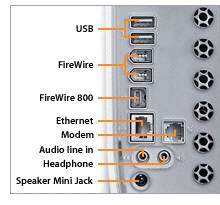
Thunderbolt which is found on some Macs has a
thunderbolt icon, and can be adapted to Firewire,
but USB can not. Firewire and Firewire 800 can be
adapted to each other as well. Firewire is not to
be confused with firmware. Firmware is a special
software that sets switches on computer chips to
operate a certain way.
I'm happy to elaborate on this if you have a
specific question, just e-mail
me.
Why backup?
It is not a question of if data will be
lost, but when. User error, data corruption,
hardware failure, bugs in installers all
play a part in potential disasters that only
a backup can recover from. While you don't
have the viruses or worms on the Mac like
you do in the Windows world, it should be no
excuse to not backup. These incidents can
happen at anytime, and frequently without
any warning.
User error is the number one cause of lost
data. You drag a file to the trash without
meaning to, or use a keyboard shortcut used
to send a file to the trash, or take a file
out of its prescribed location, and the
system gets broke. Before moving
preinstalled folders or adding files to
preinstalled folders, know what files belong
where. Ask if you are unsure. And only start
moving files once you know your critical
files are backed up. In addition, if you
lose track of files, and their location,
having a backup you know where it exists
will help you find those files which you
lost. And then there are technicians who
either tell the user, or don't tell the
user, that they have to wipe the hard drive
to isolate the possibility that a system
issue observed can be either hardware or
software. It is still user error, for not
ensuring their data is backed up before the
technician has seen the machine, and user
error for trusting a technician will always
tell them every pitfall of bringing it in to
repair. Naturally a technician who doesn't
state very clearly that data loss may be
required, should be reprimanded for doing
so, and should also learn that they should
attempt data recovery
before doing anything which may cause data
loss. Manage your backups so that
information isn't lost by accident.
There are many disk utilities which claim to
help keep your hard disk in good shape, and
some are better than others, but if you
don't have a backup, any of them could
actually be worse than the backup software
to your data as a simple power failure
during use of one of those utilities can
make the data get lost forever. Data
corruption is probably the number two cause
of losing data.
Hardware failure. Eventually all hard disks,
tape drives, CDs, DVDs, Zip drives, Zip
disks, floppies, tapes, and even drive
controllers fail. Hopefully most will not
happen during the time between now and when
you can afford your next computer, but it
could happen. Getting an external source to
backup your data to will lessen the risk of
any one component making your data get lost
forever. Whether it is an external hard
drive, CD burner, tape drive, or a zip
drive, the more backups of your data you
have, the better off you'll be. Some will
even say an off site backup is a good idea
since a disaster could happen to your home
or office that ruins the media on site.
And then there are installers which without
warning will remove different versions of
programs, and in a few cases have been known
to remove all the data on the system by
accident.
Always have at least two copies of your data
at all times. As the loss of one data source
due to any of the above failures means you
will need the second backup to recover your
data.
And one copy should also be in a remote
location in case something happens to the
home location whether it is theft,
accidental damage, or natural disaster.
In the meantime if you aren't able to make
the investment in backup software or
hardware at least make yourself a hard copy
of all your documents by printing them out.
While not as easy to recover from as digital
backups, at least you won't be trying to
create the data from scratch. Though as
you'll see below, some options are no more
expensive than printing out your documents.
Finally, Apple now has come to terms with
backing up:
http://support.apple.com/HT1566
Which is the article referenced by the
update both via Software Update and Apple
Software Updates page for 10.5.1 it
says:
"It is recommended that you
backup your system prior to installing
any updates."
You can't say you haven't been warned by the
horse's mouth anymore.
Disk Maker
Disk Maker is a utility
much like Windows Recovery software, but
made for the Mac since Mac OS X 10.7. It is
able to construct an emergency boot drive
with just the operating system, in event you
have no internet or internet restore
available. This can be useful when changing
hard drives due to damage of drives, and
antiquated CMOS capacitors or batteries, and
other similar situations where waiting for
the entire internet restore is not possible,
and time to construct a full clone is not
practical either.
What method is
best to backup?
Note, no one backup method works best for
all people. But the important thing is that
you do backup, and have some location where
information is stored at least twice at all
times. The methods described below will vary
in usefulness depending on the amount of
money and time you have to spend on backup
and recovery. A clone has the most up front
money to spend but by the same token is
quickest to recover applications, and
documents without having to write down
registration codes (most applications will
recover their codes easily from a recovered
clone, a few may not). Other means of backup
work if you don't have the means to clone,
or the money to put up front for a couple
external firewire hard drives. Of course if
your data just consists of a few CDs of data
or less, a CD based backup makes a lot of
sense. Just be sure to write down the
registration codes regardless, so you don't
have to hunt down the proofs of purchase for
the various software to reobtain them.
Speed and backing up
Most backup software may be able to
multitask, but for the sake of speed, and
lack of corrupt files, please only backup
your data when your computer is not in use.
You can well imagine, an opened file
attempted to be backed up, might be in a
limbo state when it tries to back it up.
Furthermore, it can only backup its last
saved state. Unless you have an autosave
feature turned on, backup software will
typically only save the last saved state
before the backup commenced.
See Time Machine
section for tips on backing up and
multitasking with it.
How to recover
when no backup is available and drive
becomes inaccessible?
There are occasions, where you might
accidently rename or move your home
folder, or its contents and find yourself
stuck with a default desktop. If it looks
like your hard drive is about as full as
it was before this happened, chances are,
you may be able to recover from this
situation using a few
simple instructions from Apple.
If one of your home preference files got
corrupted, and nothing was renamed or
moved, you might be able to go into single
user mode (command-S at startup), and
delete the /Volumes/your hard drive
name/Users/yourname/Library/Preferences/com.apple.finder.plist
file to get the desktop to restore itself.
Command is the Apple logo key. Once at the
prompt, use the unix commands (note if at
all uncomfortable with Unix, you should e-mail me first to
make sure you understand the directions)
of:
ls /Volumes/
(all commands here and below should be
followed by the Return key)
to determine what your volume is that your
hard drive is on, do a:
cd "/Volume Name/Users/"
, then do an:
ls
, to determine your home folder name, and
then a cd "home folder
name/Library/Preferences". You'll then be
able to at the command line:
rm com.apple.finder.plist
Finally at the prompt type:
exit
and the next Return key will attempt to
log you in.
Additionally, if you were booted into Mac
OS 9, you might have by mistake thought
some three letter named files at the root
of the directory were trash and deleted
those. They are NOT! They are part of Mac
OS X. Apple has written this
article if you happened to delete
the etc or var directories by mistake.
File Vault images
can get corrupt, though can be repaired by
the procedure outlined by the
knowledgebase in Article
HT2631.
In some cases if you don't have a backup,
you may have to attempt to recover data
from your computer first using a data
recovery utility before backing up. These
exist when no directory
repair utility is able to see the
hard drive. Those data recovery utilities
are not 100% reliable, though should be
attempted prior to repairing the directory
when the drive is not backed up.
The best that I've seen is Prosoft
Data Rescue. Similar featured
utilities are Boomerang, Cleverfiles Disk Drill,
Wondershare
Data Recovery
Subrosasoft FileSalvage (is no longer
available, and publisher has closed up
shop),
Stellar Data Recovery,
and Tenorshare
for Mac and Windows (replaces
Recuva).
Ontrack
Kroll is a more expensive data
recovery option for Windows, available
through retailers. DriveSavers
is the best data recovery
site that preserves Apple warranty on
drives it recovers, and tends to be the
most expensive option
So taking either Prosoft Data Rescue,
Cleverfiles Disk Drill, Wondershare Data
Recovery, Tenorshare, Boomerang's
Boomerang, or StellarInfo's data recovery
and coupling one of them with a Firewire
external hard drive of equal or larger
size can recover data. I recommend a
larger hard drive from any source that
makes hard drives known to be able to boot
the operating system you are attempting to
restore, such as Otherworld
Computing. Others may be given on XLR8YourMac
based on compatibility. A full restore
should be bootable, but even if it isn't
bootable, you should be able to get useful
information off if you connect it to a
known working Mac or a second partition
(link explains how to partition) of that
large hard drive. If the machine is able
to boot Firewire drives, which includes
all Macs able to run target
disk mode, it is just a matter of
first installing Mac OS X on one partition
of the external hard drive, and giving
enough space for recovery of all the
information from the internal hard drive
on a second partition. That means the boot
partition for Mac OS X should be at least
10 GB, and should be the same version of
Mac OS X you already have installed on
your internal hard drive. Use the
installer disk which can install Mac OS X
on your Mac as my Upgrade FAQ
explains. Once you have installed X on the
external hard drive 10 GB partition, boot
into it with the startup manager (Intel
version, PowerPC
version), and then install Prosoft
Data Rescue, Cleverfiles Disk Drill,
Wondershare Data Recovery, Boomerang's
Boomerang, or StellarInfo's data recovery.
Use Prosoft Data Rescue, Cleverfiles Disk
Drill, Wondershare Data Recovery,
Tenorshare, Boomerang's Boomerang, or
StellarInfo's data recovery to recover
information to the second partition you
had made on the external hard drive. You
can also use Target Disk Mode to mount
both your broken Mac, and the external
hard drive with another Mac, thus
installing Prosoft Data Rescue,
Tenorshare, StellarInfo's Data Recovery,
or Boomerang's Boomerang on the working
Mac, and then doing the recover between
the unbootable Mac that is in Target Mode,
and the external hard drive. If you would
like to try these instructions but don't
understand their terminology, please e-mail me and I'll
explain any terms you need to know.
If you are certain that Prosoft Data
Rescue, Cleverfiles Disk Drill,
Wondershare Data Recovery, Tenorshare,
Boomerang's Boomerang, or StellarInfo's
data recovery, managed to got all your
data, then go ahead and try the directory
repair and permissions repair on the
internal of the broken Mac. If it
doesn't make your Mac bootable, but you
were able to recover the important data,
and restore it to at least two places, an
erase and install, or replacement of the
internal hard drive is recommended.
If directory repair does not make that
internal drive bootable, and you weren't
able to recover all your data, then
several data recovery companies exist that
specialize in nothing but data recovery,
but those tend to cost thousands of U.S.
Dollars. The only one that is currently
authorized to do recovery of data from
physically damaged hard drives while still
maintaining one's warranty is Drive Savers. A second
data recovery company is Kroll Ontrack. If you
find another data recovery firm that you
think does a good job for less that Drive
Savers, please e-mail
me.
Backing up user files
A good article on files from the user folder
to backup if you choose not to go the clone
method below is Apple's
Knowledgebase Article 301239
Another article is 106941
which refers to it. Caution
Article 106491 as of the writing of this FAQ
recommends a manual backup using root
account. The use of root is not necessary
for backing up, and potentially dangerous!
When discussing backing up user data,
remember that means all data in your Users
-> yourname folder with the house icon  , also known as the Home
folder. , also known as the Home
folder.
You can find user data for the following
applications here:
Home -> Music if you used iTunes.
Home -> Pictures if you used iPhoto
Home -> Movies if you used iMovie
Home -> Library -> Mail and Mail
Downloads folder if you used Mac OS X Mail
to store mailboxes on your Mac (IMAP and
.Mac by default do not, but can be modified,
and POP by default does store mailboxes on
the Mac, but can be changed. I'm unsure how
Exchange works.)
Home -> Library -> Applications
Support -> Addressbook for Addressbook
application which doubles as Mac OS X's Mail
addressbook
Home -> Library -> Calendar folder for
iCal calendars
Home -> Library -> Safari for Safari
bookmarks and cookies folder
Home -> Library -> Preferences ->
com.apple.mail.plist for mail password
settings
Home -> Documents -> Microsoft User
Data for Microsoft Entourage
Mozilla folders in the Library ->
Preferences, Documents, and Library folders
will store various bookmarks and cookies for
certain browsers. And don't forget the Users
-> Library -> Application support for
additional documents of other applications.
Otherwise look at the Users -> Library
folder for documents by specific
applications. Make sure to have at least two
copies of your user data, and applications
so that when you go to recovery, if one has
worn out, you can rely on the other. The
following are tools you can use to make
backups of your user files. E-mail
me if you know of any other unique
folders that need to be backed up for
specific applications.
Apple's Finder and Disk Utility (Disk Copy
in 10.2.8 and older Mac OS system versions)
will burn CDs and DVDs as long as you have
enough temporary storage space for the
media. Mac OS 9 was the first operating
system of Apple's to have built-in CD
burning capability.
http://www.apple.com/icloud/
has a backup software that will backup data
to Apple's server, DVD, CD, or hard drive in
groups of important data sets.
Dokku LBackup
- backs up user data with a system
administrator's point of view.
Other CD and DVD burning software include:
https://www.roxio.com/en/mac.html
Roxio Toast
http://www.ntius.com/default.asp?p=dragonburn/dburn4_main
NTIUS DragonBurn
In addition, you may backup your user files
to the web, through a iCloud account or just
using FTP on a webhost. Two very good FTP
programs are RBrowser for non-secure FTP
based hosts and Filezilla for SFTP and FTP
clients. Or you may use a flash drive,
zip drive, magneto optical drive, or even a
hard drive to backup your data to. The point
is, it is not on your main hard drive as the
only source of the data. When sending to a
regular webhost your data, use the
control-mouse click Archive option on any
folders of data you want to preserve. This
option which has been available since 10.3,
and makes any data you send over the
internet easier to retrieve and preserve its
attribute information such as which
application could open the data. Similarly,
when dragging information to a PC formatted
media making it an archive file with 8.3
filenaming will make it easier to retrieve
in the future. Don't forget if you are going
to PC formatted media, to format it FAT32,
and not NTFS. Macs can write to FAT32, but
can't write to NTFS unless you add Macfuse,
Tuxera NTFS, or Paragon NTFS and HFS
Windows to your Mac. Allume's Stuffit Deluxe
offers older operating systems a way of
archiving files for storage over the web in
a platform independent manner. When using
FTP to transfer these archive files over, it
is best to use a binary transfer. Some
webhosts require you use Active versus
Passive FTP for transfer. Check with your
internet service provider if they offer
these options, and how much space they
offer. If it is insufficient, check Who is hosting this to
find one that meets your needs.
Making a
clone/mirror/duplicate backup
The ideal backup is a clone, also known as a
mirror or duplicate backup. Be sure to only
leave the backup drive connected and no
other Firewire devices at the time of the
backing up. Note, these backups do have one
serious weakness, and that's when they are
done when something else is running which
may be changing preferences or caches of
important files. You also want to make sure
the drive you are backing up to is formatted
Mac HFS Extended (HFS+) if using Mac OS 8.1
or above. On Intel Macs, your clone drive
needs to be formatted
GUID (link explains how) through the
Options button under the partition section
of Disk Utility to make the clone bootable.
On PowerPC Macs, your clone should be
partitioned as Apple Partition Map.
You can network Windows PCs with Macs while
keeping the Mac formatting on your external
hard drive, using Apple
knowledgebase article HT1627 as a
guide. Clones will not work to FAT32 or NTFS
partitions. Mac OS 10.13 introduced
APFS file formatting which is automatic for
solid state and thumb drives. To
be able to boot from an older system you
will need the startup
manager.
You do NOT want any other application to be
open when running such a backup. Also
disable Spotlight (in 10.4 only) on your
destination drive using Apple menu ->
System Preferences -> Spotlight ->
Privacy to add the destination drive to the
pane. If possible, boot into safe mode to
perform the backup (holding the SHIFT key at
startup). In addition, you can clone while
logged into another administrative user that
you don't use at all to avoid further
complications of changes which may be
happening to your regular user (though don't
use Fast User Switching to get into that
other user, since that other user is still
active when fast user switching is used).
Otherwise you are going to be running a
backup on a live system which could have
changes happening while you are attempting
to backup. These may yield an imperfect
clone, with uncertain success at recovery.
It may be possible that your clone will have
its own hardware issues, so make at least
two copies. As data corruption may exist in
your clone, when you go to recover from your
clone, you may find it best to use the Apple Migration Assistant
after installing the operating system on the
original. Since Mac OS X is bootable on
Firewire in PowerPC Macs (Intel Macs
support both some Firewire and some USB 2
drives), here is my link
which lists external hard drives that are
known to be safe with 10.3 and above. Some
drive manufacturers haven't updated their
firmware to make their drives compatible
with 10.3.
Backup software which makes duplicate (also
known as clone or mirror backups). These
backups will boot any system that is capable
of Firewire
target disk mode, as that was another
one of the features those systems got. To
ensure that a clone works, select the
destination drive in the Finder, by clicking
it once, and selecting Get Info in the File
menu, and uncheck "Ignore Privileges". If
your clone is successful, then it should be
able to boot the same system.
Important Note:
Cloning to another computer via Target Disk
Mode is NOT recommended. Apple's drivers are
system specific, even with universal
installs. Attempting to clone from one Mac
model to another of a different vintage or
model name, can result in kernel panics
on the clone.
Bootable backups on Firewire machines that
are older than Apple's official listing
of capable machines now are possible
through Firewire with the use of XPostFacto according
to XPostfacto's website. I haven't tested
this yet, but this is an encouraging
development for people wanting to clone
backup their systems on older Firewire
built-in Macs. These are five software
titles which I've tried that are able to
make a clone backup:
http://www.lacie.com/products/software/intego-backup-mac-os-x/.
LaCie's SilverKeeper is no longer listed on
their website, but was a backup software for
older Macs.
http://www.retrospect.com/
's Retrospect Express and Desktop
http://www.bombich.com/
Carbon Copy Cloner. Note, if you use older
versions Carbon Copy Cloner, be aware that
an incomplete backup could yield a huge
temporary file in the /Volumes direcrory.
This is covered in more detail on Bombich's
discussions.
http://www.shirt-pocket.com/SuperDuper/
SuperDuperDescription.html Superduper
Apple Disk Utility
(included with 10.3 and above)/Software
Restore procedure written by someone
at Bethel College.
I've also written a procedure on my Cloning with Disk
Utility FAQ which has only been tested
on 10.4.2.
Software which I haven't tried yet but also
says it can do a clone backup:
https://twocanoes.com/products/mac/winclone/
- Boot Camp clone software for cloning
Windows installations on Apple Boot Camp
partitions
http://www.tri-edre.com/english/cloner.html
Tri-Edre Cloner. Tolis
Group - Cloning and crossplatform
backup software developer.
http://www.qdea.com/pages/downloads1.html
Synchronize Pro
http://www.propagandaprod.com/
Deja Vu
http://prosofteng.com/
Data Backup - formerly available.
Checking with company if a new link is
available. Data recovery software is still
available.
AOMEI Backupper Standard
- A free Windows cloning software
HIRENS
- a Windows 7 and earlier compatible data
recovery & system diagnostic software
including tools for BCD, bluescreen, memory
test, scandisk, and malware detection.
Recuva - a free data
recovery tool for Windows.
Lazesoft Password
Recovery, BCD recovery and other Windows
recovery tools similar to HIRENS, available
for Windows 10!
Carbonite
- subscription based cloud backup
service.
Time Machine
Apple's Leopard (10.5) operating system
released October 26th, 2007, and Snow
Leopard and Lion operating systems have a
feature called Time
Machine. Time Machine's behavior is
not quite what is expected, but once you
understand it you can make full use of its
capabilities. In this page: http://www.apple.com/macosx/features/timemachine.html
it says:
"Backing up to a full disk. One
day, no matter how large your backup drive
is, it will run out of space. And Time
Machine has an action plan. It alerts you
that it will start deleting previous
backups, oldest first. Before it deletes
any backup, Time Machine copies files that
might be needed to fully restore your disk
for every remaining backup. (Moral of the
story: The larger the drive, the farther
back in time you can back up.)"
Turns out you can turn on that warning, or
turn off that warning, but it makes no
difference, it will go ahead and start to
delete hourly backups more than 2 days old!
So you are better off making sure that you
don't delete files more than once a day, and
that way, you won't lose information to time
machine's need to keep disk space clear on
the backup. It falls somewhere between
having a clone, and just data backup, as it
makes a restorable system on its own without
having to lose critical information from
preferences like simple User Data backup
solutions do. From all appearances, it saves
all the important information to rebuild
your machine if you keep a copy of Leopard
handy. This does pose a problem if your
Leopard DVD should fail. I strongly
recommend following the steps on my Make a bootable CD
FAQ using a DVD+R DL discs to make a Leopard
DVD copy so that if your existing Leopard
disc should die, you'll have another you can
restore your Time Machine backup with. Not
all Superdrives are DVD+R DL compatible.
Visit Otherworld
Computing, or Patchburn,
and XLR8yourMac
if you find yours does not have an entry in
Apple menu -> About This Mac -> More
Info -> Disc Burning -> Hardware ->
Disk Burning -> DVD Write where it should
say +R DL showing that your drive supports
it. If it doesn't then adding an external
Firewire DVD burning drive using these
sources as references and/or places to
purchase it, will allow you have a drive to
make that boot DVD of Leopard copy.
Special thanks to Macworld from Apple
Discussions, we now have directions for
remote backup via ssh using Time Machine:
/System/Library/CoreServices/backupd.bundle/Contents/Resources/backupd-helper
&
Is it a good enough reason to upgrade to
Leopard? These Upgrade
Steps still apply regardless of
whether it is, or isn't.
Lastly, it is important to remember since
Time Machine functions in the background
when turned on via Apple menu -> System
Preferences -> Time Machine, you are
better off leaving it off, and manually
turning it on via the menubar icon for it
when you are not going to use the computer.
Check the menubar icon for it to determine
if it is backing up before trying to
multitask with your backup. |
Lion Data
Recovery
With Apple's July 20, 2011 Mac OS X 10.7 Lion
introduction, Apple has released a new form of
data recovery. Described in full detail on Apple
How To Knowledgebase Article 4848 A small
bootable partition gets installed when you install
Lion that includes the basic tools found on the
10.7 installer Flash drive. While not as foolproof
as having an external hard drive, it does offer
some ability to recovery the system to its base
install, and recover data from any external backup
you might have made with Time Machine or a cloned
system. It does not stop the need to etiher make a
Time Machine or Clone backup.
Unlike Time Machine with earlier versions of Mac
OS X, it no longer requires there be a system
installer to restore the Time Machine Backup.
However, those who backed up systems older than
10.7 trying to recover Time Machine backups in
10.7 or later may run into issues, especially if
they don't have the 10.6 installer disc or older,
and if the software required the use of Rosetta.
For more on Rosetta, and why this matters, see my
tip
on Apple Support Communities.
Using the Migration
Assistant for cloning purposes
Note due to the reliability of booting off a
Firewire hard drive being less than that in some
situations than that of booting off an internal
hard drive, the first method described below is
not recommended unless you are certain it is worth
the risk. You'll see also below it see a better
method of recovering data from a clone. If you
should lose your connection in the middle of
booting off an external hard drive, while trying
to import data to it, both the boot data on the
external hard drive, and the data being
transferred while the connection is lost could be
compromised. On the other hand, if you lose your
connection while booted off an internal hard
drive, the boot system of the internal hard drive
won't suffer the same compromise as it isn't being
actively used by the external hard drive, and then
only the data being transferred could potentially
be lost. As always, it is recommended you have at
least two copies of your data at all times! Here's
the method:
1. Install the operating system (you may need to
create a different primary username which you can
later erase for the migration assistant to work
properly)
to an external hard firewire hard drive (note
these limitations
for external Firewire hard drives)
2. Boot off the external hard drive.
3. Apply the updates to the external hard drive of
Apple operating
systems, and security
updates keeping in mind these precautions.
4. Migrate the data from the internal drive to the
external drive with The
Migration Assistant.
The Migration Assistant does work better if you
are recovering from your backup, as you would run:
1. Erase a new internal hard drive.
2. Install (you may need to create a different
primary username which you can later erase for the
migration assistant to work properly)
and apply the updates to the internal hard drive
of Apple operating
systems, and security
updates keeping in mind these precautions to get
your hard drive up to the level that your backup
was at.
3. Migrate data from your clone with the Migration
Assistant after connecting an your Firewire hard
drive clone.
The first book that I've seen geared towards
teaching how to backup Mac OS X has been released
by Tidbits Take
Control of Mac OS X Backups by Joe Kissell.
Suggestions? Please e-mail me
Return to top |